CLI
Use the CLI to set up, develop, and manage your website.
The CLI is the central entry point for frontend development. Its primary function is to transpile and bundle your code for development.
Prerequisites
- Homebrew installed locally for macOS or Linux
- scoop installed locally for Windows
- Node.js installed locally (version 22.x; other versions greater than or equal to 18 are also supported, but not recommended)
- Yarn installed locally (version 1.22+)
- Your favorite IDE
- Access to your GitHub customer repository
- Access to your Studio (
https://<customer>.frontastic.io)
Install the CLI
To install the latest version of the CLI, open a command-line tool and run one of the following commands based on your operating system.
For macOS and Linux, run the following command:
Install frontastic-cli on macOS and LinuxTerminalbrew tap frontasticgmbh/tap && brew install frontastic-cliFor Windows, run the following commands:
Add scoop bucket on WindowsTerminalscoop bucket add FrontasticGmbH_scoop-bucket https://github.com/FrontasticGmbH/scoop-bucketInstall frontastic-cli on WindowsTerminalscoop install frontastic-cli
CLI dashboard
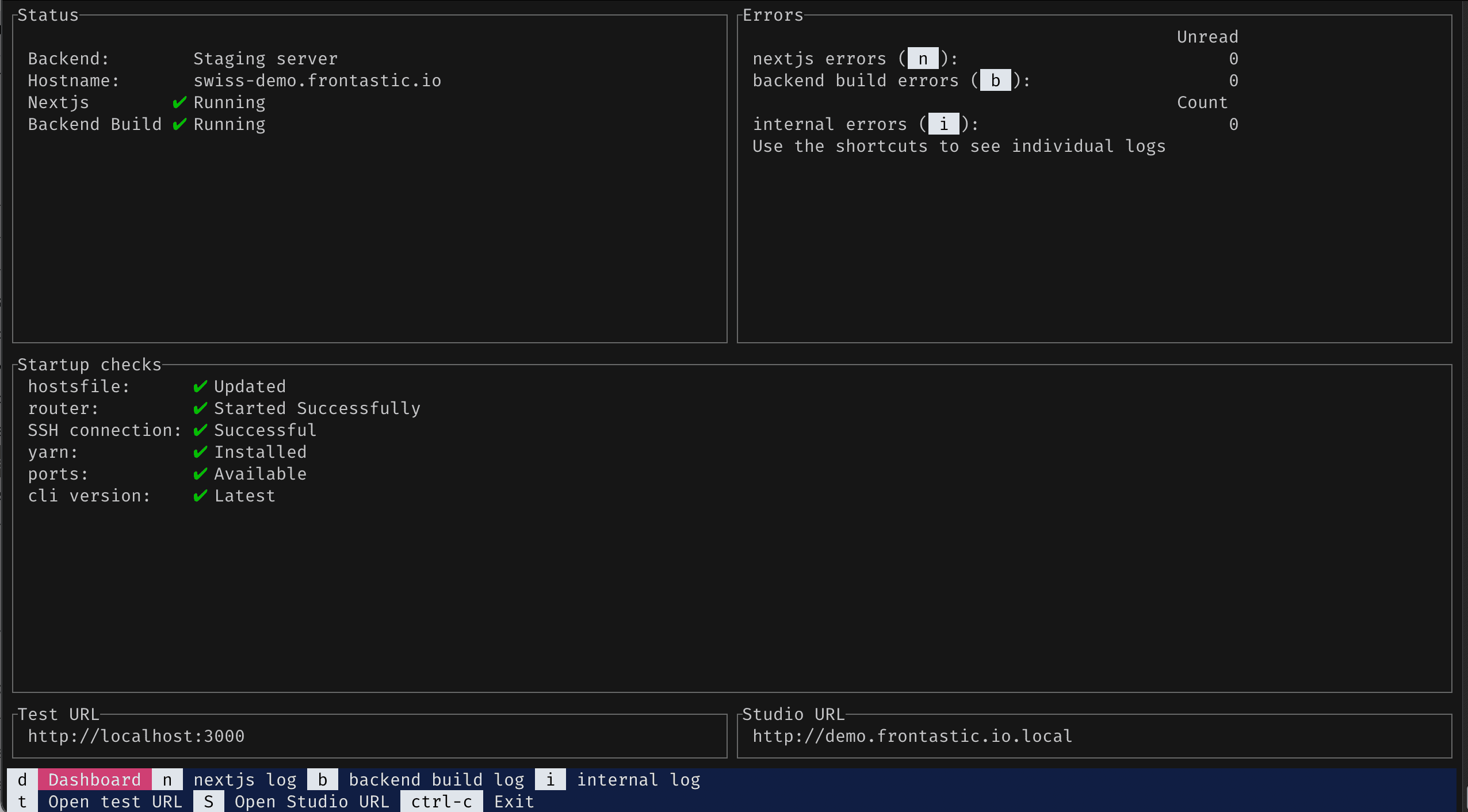
The CLI dashboard consists of the following panes:
Status displays the status of the running processes. For example, you can see if a process stops or a connection is lost.
Errors displays the number of unread errors for Next.js and backend extensions build. To read error logs, use the related hotkeys to open the window where the error occurred. When you return to the dashboard, the unread errors will be reset.
Startup checks displays the status of the CLI startup checks.
Test URL displays the URL for the test environment.
Studio URL displays the URL for the Studio.
The last pane displays the available hotkeys.
Commands, flags, and hotkeys
You interact with the CLI using commands and hotkeys. The flags let you provide additional options to the commands.
Commands
frontastic initconfigures the project and prompts you to enter the Studio user API token.To copy your API token, follow these steps:
- From the Studio home page, click the Account icon and select Profile: the User settings dialog opens.
- Copy the value in the API token field.
You might need to provide your
sudopassword as the CLI updates your/etc/hostsfile, which needs superuser rights.frontastic installruns the installation for all dependencies for your project.frontastic runexecutes the following actions:- Starts the Next.js frontend process by running
yarn dev. - Starts the build process of the extensions.
- Starts the Next.js frontend process by running
frontastic scaffoldcreates a commercetools Frontend project when setting up a Git repository.frontastic uploaduploads the specified backend build to the Studio.frontastic helpruns thehelpcommand to open up the help menu.
Flags
frontastic --versiondisplays the version of your CLI.frontastic [command] --verbosedisplays logs and error messages from the specified command.frontastic [command] --helpdisplays information about the specified command.
Hotkeys
Dashboard
bdisplays the webpack build log for extensions.dopens the CLI dashboard.idisplays internal logs.ndisplays the logs and error messages from the Next.js process.S(eitherShift+sorCaps Lock+s) opens the URL to the Studio in a browser.topens your test URL in a browser.Control+cexits the CLI. On Windows, you might need to typeexitinstead.
Logs
In the log windows, you can use the following hotkeys.
The hotkeys for extension logs differ from the hotkeys for other log windows. For further information, see Extension logs.
gorhomemove to the top of the page.G(eitherShift+gorCaps Lock+g) orendmove to the bottom of the page.horleft arrowmove left.jordown arrowmove down.korup arrowmove up.lorright arrowmove right.Control+forpage downmove down one page.Control+borpage upmove up one page.Control+lsaves the current log window as a.txtfile.Control+madds a marker to the end of the log to help identify new log messages.
Extension logs
In the extension logs window, you can use the following hotkeys:
ccopies the selected log message to the clipboard.F(eitherShift+forCaps Lock+f) opens a filter dialog where you can filter messages by log level and other criteria.jordown arrowmove down.korup arrowmove up.rinitiates a search with regular expressions. Enter the expression to filter log messages./initiates a search. Enter the search term to filter log messages.Enterdisplays the detailed view of the selected log message.Control+hadds a marker at the end of the log to help identify new log messages.
You can open a help window listing the hotkeys by pressing h.
Update the CLI
We recommend keeping the CLI up-to-date to get the latest features and bug fixes. To update the CLI, run one of the following commands.
On macOS or Linux:
Update frontastic-cli on macOS/LinuxTerminalbrew update && brew upgrade frontastic-cliOn Windows:
Update frontastic-cli on WindowsTerminalscoop update frontastic-cli
Troubleshoot
Following are the most common issues with the CLI and their resolution.
CLI not starting on macOS
If you get a message saying the application cannot be started because the developer cannot be identified, you must allow the application from System Settings on your computer.
ENOENT or Yarn install errors
If you experience a problem with node_modules or an error in the CLI containing ENOENT, you must reset your local setup. To do so, follow these steps:
Run the following command to print the files that will be removed.
Test run the clean up commandTerminalgit clean -fdxn -e .ideaMake sure that the files can be removed. Then, run the following command to remove the files. This will delete the files that aren't tracked by Git and reset your local setup.
Print the files that will be removedTerminalgit clean -fdx -e .ideaRun the following command to re-initialize your project.
Remove untracked filesTerminalfrontastic init
Chromium not working on M1 Mac
You could get the following error when running frontastic install on an M1 Mac.
The chromium binary is not available for arm64:If you are on Ubuntu, you can install with:apt-get install chromium-browserpath-to-project/node_modules/puppeteer/lib/cjs/puppeteer/node/BrowserFetcher.js:112throw new Error();
To fix the error, follow these steps:
Install Chromium on your local machine by running the following command:
Install ChromiumTerminalbrew install chromium- If Chromium runs correctly, go to step 5.
- If you get a message saying the application cannot be started because the developer cannot be identified, go to step 2.
Allow Chromium from System Settings on your computer. When doing so, you must select Anywhere.
If Anywhere is available, select it. Then, launch Chromium.
- If Chromium runs correctly, go to step 5.
- If you get the
Chromium is damaged and can't be openedmessage, go to step 4.
If Anywhere is not available, go to step 3.
Run the following command to activate the Anywhere option. Then, repeat step 2.
Activate Anywhere option in security settingsTerminalsudo spctl --master-disableRun the following command, Chromium should now run correctly. Then, go to step 5.
Run Chromium with xattr -cr commandTerminalxattr -cr /Applications/Chromium.appEdit the
.zshrcfile on your computer by adding the following code. It allows skipping future installations of Chromium.Update Chromium configuration in .zshrcTerminalexport PUPPETEER_SKIP_CHROMIUM_DOWNLOAD=trueexport PUPPETEER_EXECUTABLE_PATH=`which chromium`Run the following commands to remove the existing
node modules,package-lock.json, andcachefrom the project.Remove node_modulesTerminalrm -rf node_modules/Remove package-lock.jsonTerminalrm -rf package-lock.jsonRemove cacheTerminalrm -rf .cacheClose your command-line tool and reopen it. Then, run
frontastic installto install all dependencies.
Node-darwin-arm64 error on M1 Mac
You could get the following error when using Node.js version 16 and running frontastic install on an M1 Mac.
Error: Cannot find module 'node-darwin-arm64/package.json
To fix the error, follow these steps:
Run the following command to check if the Apple Silicon M1 chip is causing the error.
Check the processor architectureTerminalnode -p process.arch- If this command outputs
arm64, go to step 2. - If not, contact the Frontend support team.
- If this command outputs
Run the following command to install Rosetta.
Install RosettaTerminalsoftwareupdate --install-rosettaRun the following command to use the
x86 64-bitbinary of zsh.Change zsh binary typeTerminalarch -x86_64 zshRun the following command to install the Node.js 16 long-term support version (LTS).
Install Node.js 16 LTSTerminalnvm install lts/galliumRun
frontastic install.
CLI marked as virus on Windows
Windows could mark the CLI as a virus and you might get a threat quarantined message. On close, Windows might delete the .exe file, and you will get a message like the following.
Error:Couldn't update hosts: fork/exec C:\Users\track\Desktop\frontastic-cli\frontastic.exe: Operation did not complete successfully because the file contains a virus or potentially unwanted software
To fix the error, you must edit Windows settings as follows:
On your computer, go to Windows Security > Virus & Threat Protection > Protection History.
Search for the quarantined CLI
.exefile and select it.Ensure it's the CLI
.exefile and not a real threat with a similar filename.Click Actions and select Restore.
Cannot install the CLI when using Docker
When creating a Docker image for your custom CI, you might face issues installing the CLI. In such case, you can use the CLI without installation by following these steps:
- From the release page of the CLI repository, download the archive for your operating system and architecture.
- Extract the archive and bundle the
frontasticbinary file into the Docker image.
When using the CLI without installation, you can only run the upload command.