Manage project configuration
You can use project configuration to store project-level variables, such as feature flags, API credentials, and access tokens.
Project configuration in commercetools Frontend is similar to storing your credentials in a .env file, except you store the credentials using the Studio and access them from the extension handler through the context parameter.
Store project configuration in the Studio
To store project configuration in the Studio, follow these steps:
Add project configuration fields to the project schema
To add project configuration fields, follow these steps:
From the Studio home page or from the left menu, go to Developer > Schemas.
Click Project schema: the Project schema pane opens.
Click Edit schema: the schema editor opens.
Extend the project schema with the appropriate field types. For example, a
booleanfield might be suitable for a feature flag, whileencryptedfields should be used for secret credentials, such as an API key. For more information about schema fields, see Schemas.Click Validate and Publish.
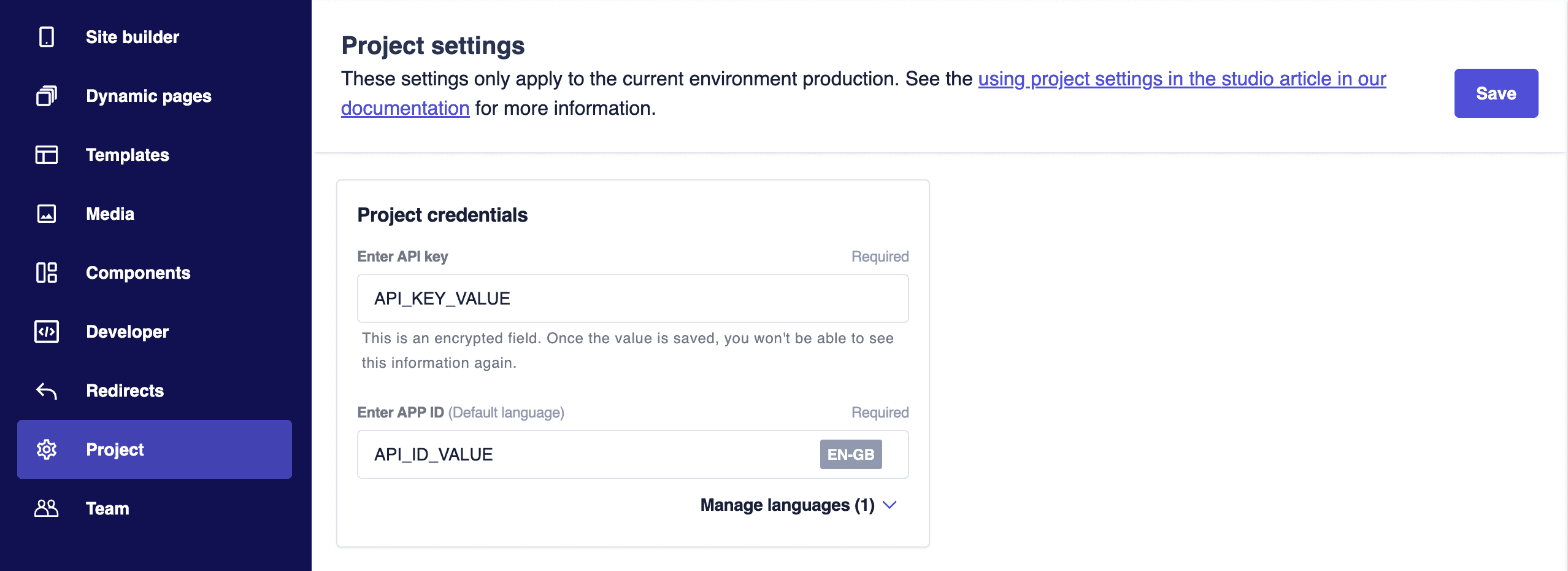
For demonstration purposes, the following schema adds the API_KEY and APP_ID fields in the Project credentials section of the project schema. By extending the project schema with these fields, a Project credentials section with the Enter API key and Enter APP ID fields is displayed in the Project area of the Studio.
{"schema": [{"name": "Project credentials","fields": [{"label": "Enter API key","field": "API_KEY","type": "encrypted","required": true},{"label": "Enter APP ID","field": "APP_ID","type": "string","required": true}]}]}
The project schema fields must be unique throughout the schema because they are flattened in the API hub. Duplicate keys will be lost causing bugs.
Encryption is a compute heavy task. Use encrypted fields only for secret credentials. Overusing encrypted fields can slow down your application.
Enter project configuration values in project settings
You must enter the project configuration values for each Studio environment, as the values are unique to an environment.
To enter the project configuration values, follow these steps:
From the Studio home page or from the left menu, go to Project.
Enter the configuration values in the fields of the relevant section.
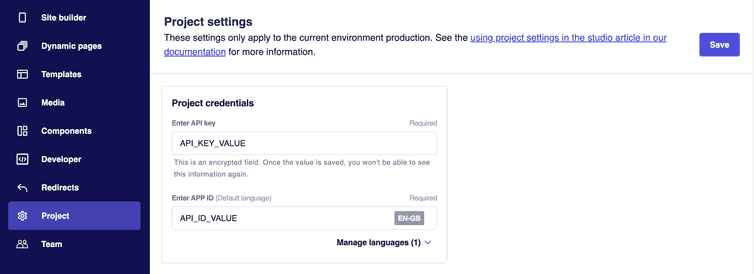
Click Save.
The values of
encryptedfields are hidden after they are saved.To update the values, click X in the text box and then enter the new value.
Read project configuration
When executing an extension, the API hub reads the project configuration values from the Studio, decrypts the encrypted fields, and passes them to the extension handler context parameter inside the context.frontasticContext.projectConfiguration key.
Read project configuration in an extension handlers
You can access the specified variables through the context property that is passed as the second argument to your extension handlers. The following example shows how to read the API_KEY configuration value in extensions.
export default {'dynamic-page-handler': async (request: Request,context: DynamicPageContext): Promise<DynamicPageSuccessResult | DynamicPageRedirectResult | null> => {const apiKey = context.frontasticContext.projectConfiguration['API_KEY'];// Fetch data for dynamic pages.},'data-sources': {'amazing-data-source': async (config: DataSourceConfiguration,context: DataSourceContext): Promise<DataSourceResult> => {const apiKey = context.frontasticContext.projectConfiguration['API_KEY'];// Fetch data with the API key.},},actions: {commerce: {getStores: async (request: Request,context: ActionContext): Promise<Response> => {const apiKey =context.frontasticContext.projectConfiguration['API_KEY'];// Fetch stores with the API key.},},},};
Override the project configuration during development
The projectConfiguration is shared across all developers working on the same project. However, sometimes you need to use a different value for some credentials locally without changing the value in the Studio.
To override the project configuration during development, you can create a wrapper function in your code to read the projectConfiguration and conditionally return the credential based on the execution environment.
In the following example, the getFromProjectConfig function checks if the required credential exists in the projectConfigurationOverrides local object and returns it from there instead of from context.
import { Context } from '@frontastic/extension-types';/*** Use this object to locally override the values that would be* fetched from the projectConfiguration by default.* It only works in development.*/const projectConfigurationOverrides = {API_KEY: 'myCustomKey',};const isDevEnv = (context: Context) => {return context.environment === 'development' || context.environment === 'dev';};export const getFromProjectConfig = (key: string, context: Context) => {if (isDevEnv(context) && projectConfigurationOverrides[key]) {return projectConfigurationOverrides[key];}return context.projectConfiguration[key];};